
How do I convert to my local currency after getting paid on Maestroverse

At the moment, the maestroverse platform does not enable direct conversion between USDC and your local currency but we intend to support this in the coming weeks.
Before we begin, please note the following:
The following information should not be taken as financial advice. We are not affiliated with any of the platforms shown. We are merely providing options for converting USDC payments received from gigs you get globally to your local currency.
Never share sensitive details like your PIN or login credentials with anyone, even people at Maestroverse.
Your wallet address does not count as sensitive. It is the equivalent to your bank account number.
Always ensure your wallet address is accurate by copying directly from your wallets tab on the Maestroverse platform as seen below.
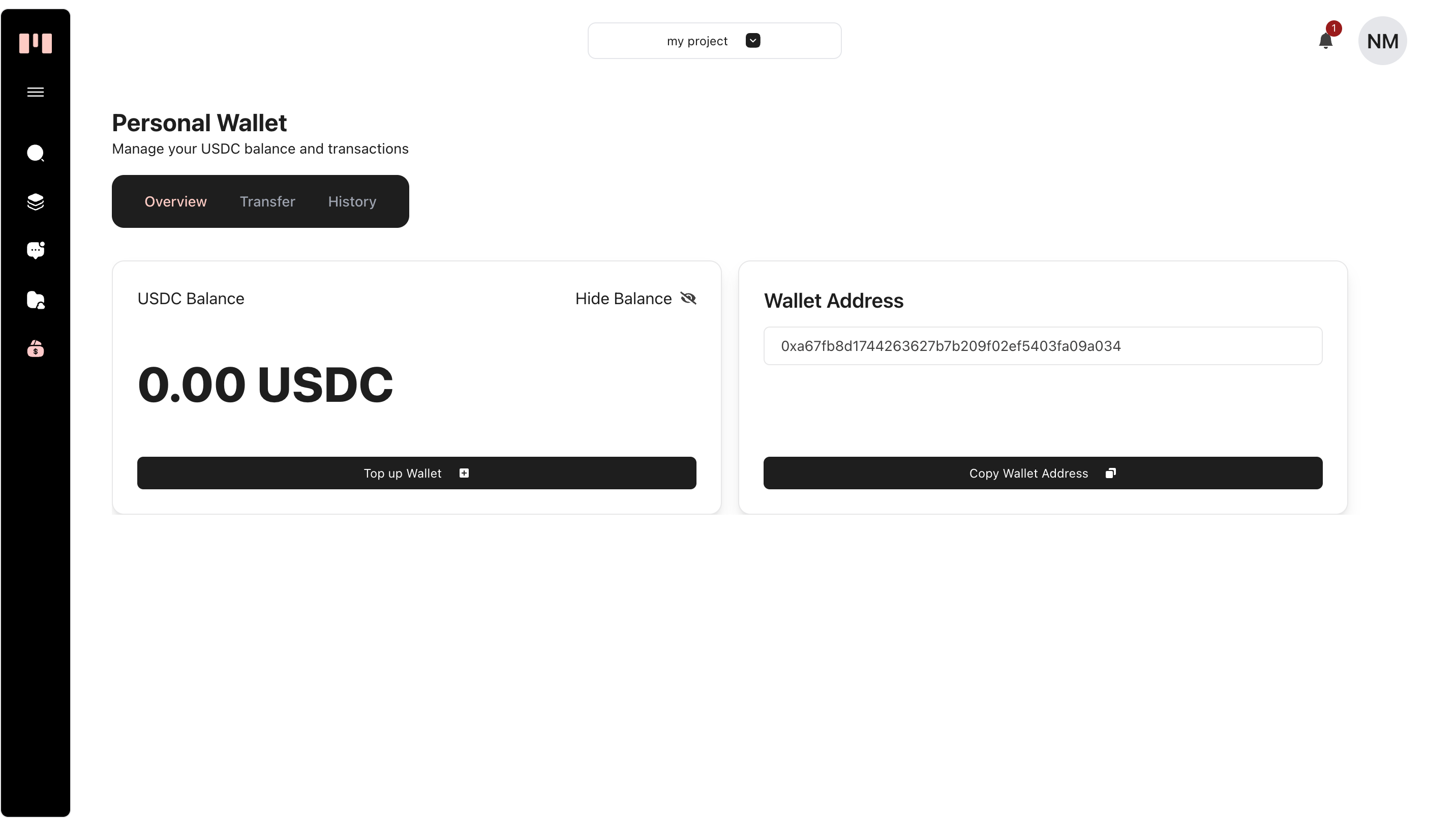
For all transactions, always ensure that you are dealing with USDC and it is on the Polygon Network (sometimes shown as MATIC).
We are always willing to help you in anyway we can to get you using the platform so if you need some guidance for your first time feel free to shoot us a whatsapp message or send us an email. Our details are on the site here.
With all that out of the way, here are the list of options. Some of them may require using a VPN in some Countries and some require you to create Dollar bank accounts for automatic conversions of USDC to USD.
Out of the listed options above, the easiest solution that we’ve found to be readily available across our 4 Markets: Ghana, Kenya, Nigeria and South Africa is Azza by Blocverse. Sending money from your Maestroverse user wallet to your Bank Account or Mobile Money Wallet is as literally as easy as sending a Whatsapp Message.
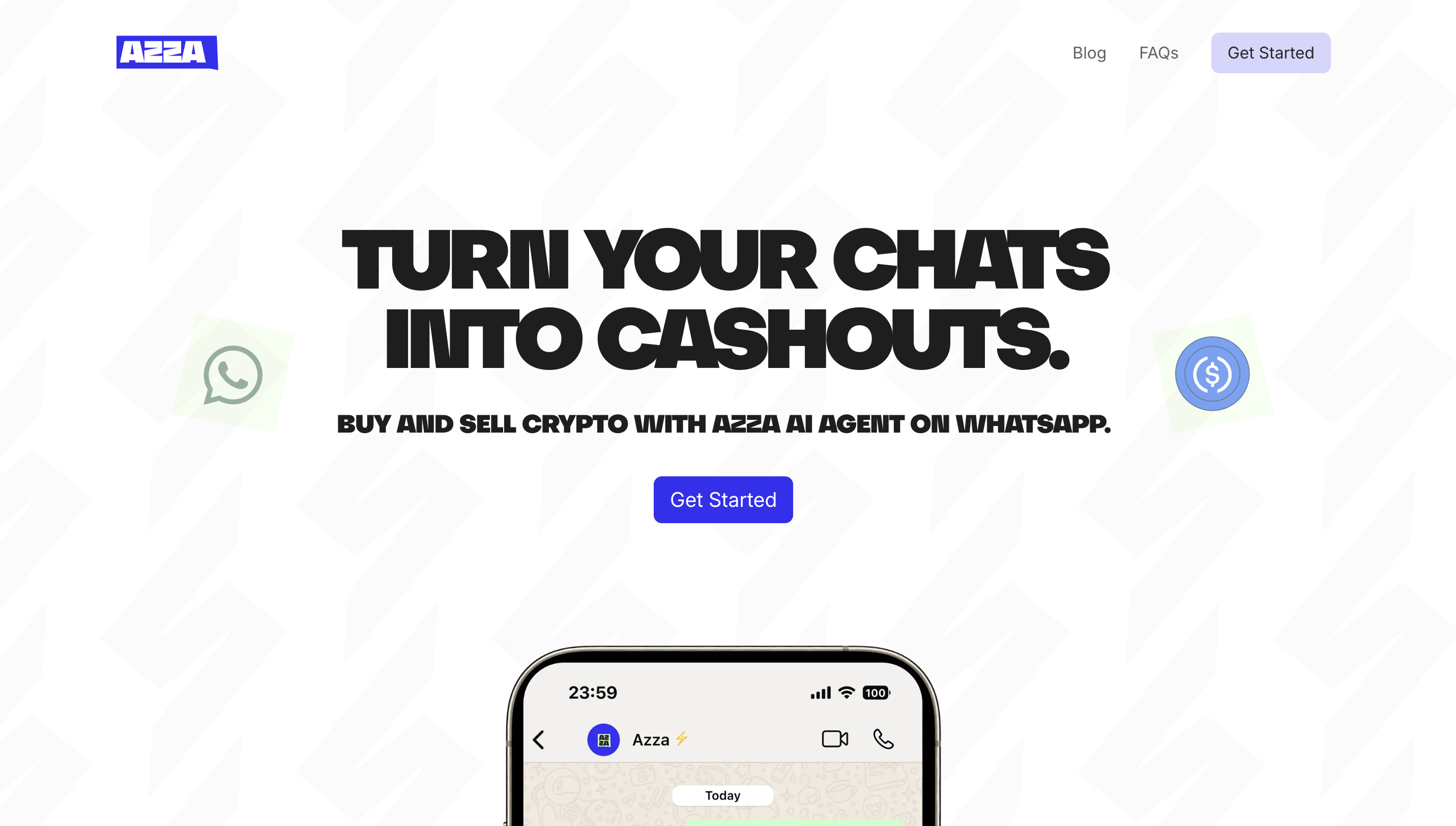
Below are the steps required for Azza by Blocverse:
Click the Get Started Button on their site to navigate to their whatsapp chatbot
Follow the guide to create wallet and set your transaction pin (you only do this the first time)
Send the message to kickstart the process: /deposit usdc polygon
After that you may be required to submit KYC details. You only do this the first time.
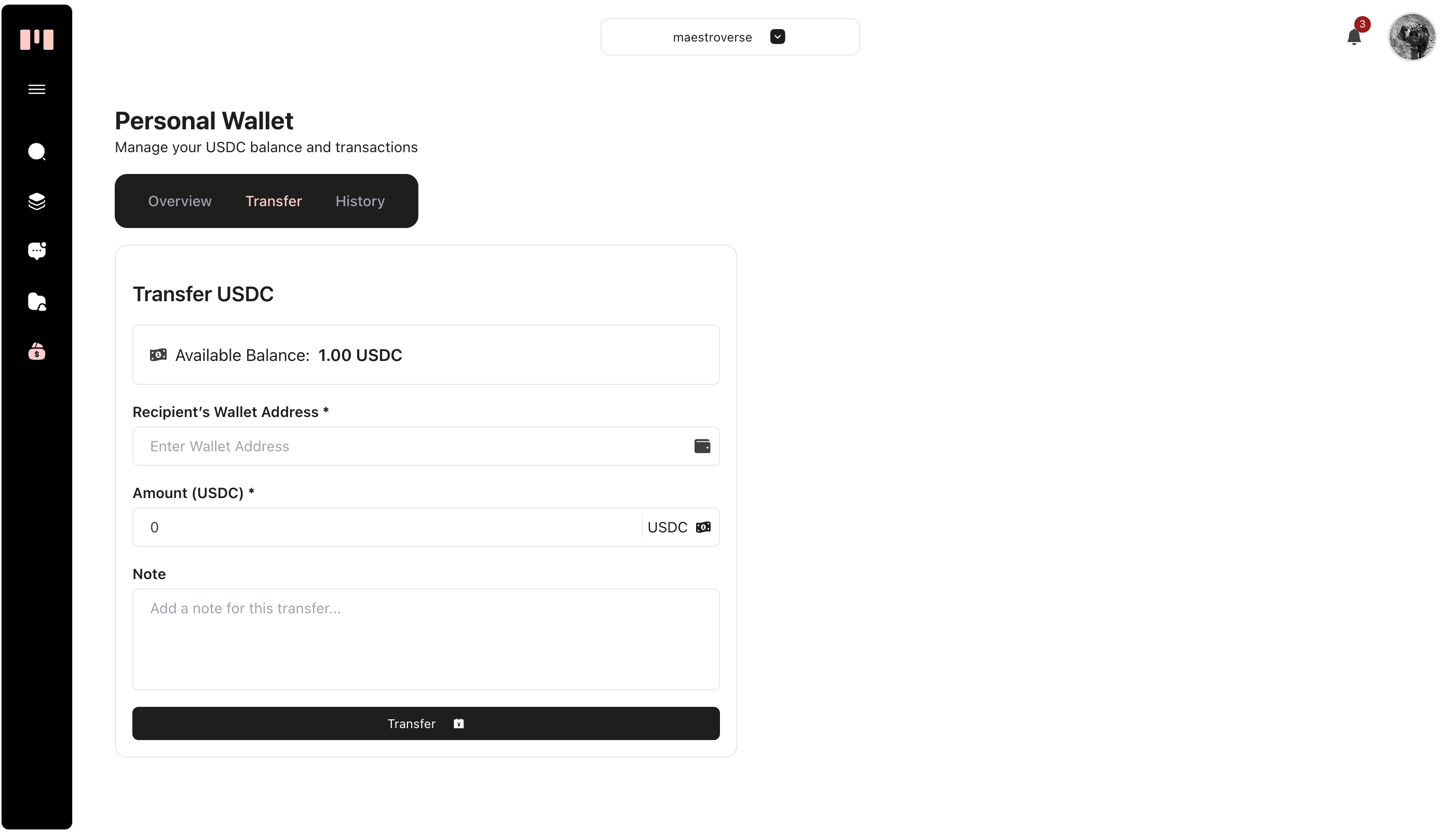
Next, copy the exact address and add use as the Recipient’s Wallet Address in the transfer form on Maestroverse and click transfer as seen below. You will get a Debit alert from us.
After receiving the deposit, send the message: /sell usdc polygon
Next, Choose or Add Existing Beneficiary. Verify the name for the bank account or mobile money wallet or other option
Input amount to send, confirm sale and await the funds
As always please know that we’re happy to help. Dont be shy to reach out to us via our official channels listed on the site here.